File Redirection in Bash
Have you ever wished you could control where the output of your Bash commands goes? Or maybe you’ve wanted to feed a command input from a file instead of your keyboard? Well, with file redirection, you can! This powerful Bash feature lets you manipulate standard input (stdin), standard output (stdout), and standard error (stderr) to your heart’s content.
The Basics: stdin, stdout, and stderr
Before we dive in, let’s cover the basics. Every process running in your Bash shell has three files open by default:
- File 0 (stdin): Where the process gets its input. Normally, this is your keyboard.
- File 1 (stdout): Where the process sends its normal output. This is usually your terminal window.
- File 2 (stderr): Where the process sends error messages. Also typically goes to your terminal.
Redirecting Output
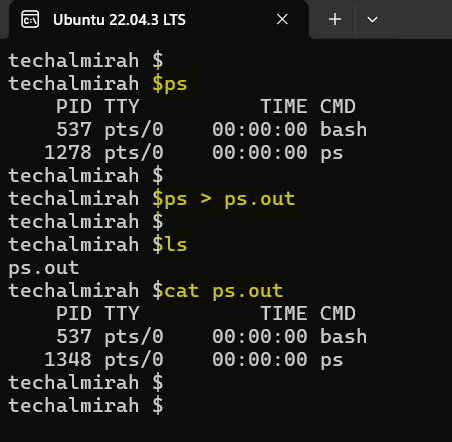
The redirection operator allows you to change where output goes.
command > file: Redirects stdout tofile, overwriting its contents if it exists.command > file: Redirects stdout tofile, overwriting its contents if it exists.command 2> file: Redirects stderr tofile, overwriting if it exists.command 2> file: Redirects stderr tofile, overwriting if it exists.command &> file: Redirects both stdout and stderr tofile.command &> file: Redirects both stdout and stderr tofile.
Example:
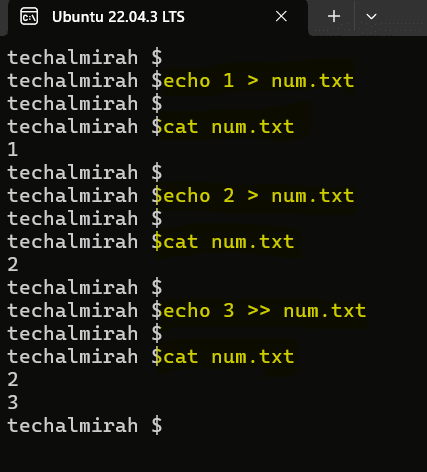
Want to append to a file instead of overwriting? Use the append operator:
command >> file: Appends stdout tofile.command >> file: Appends stdout tofile.command 2>> file: Appends stderr tofile.command 2>> file: Appends stderr tofile.
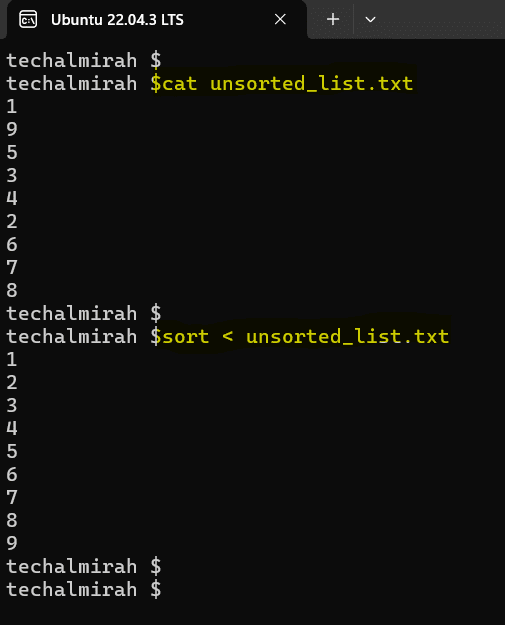
Redirecting Input
Piping Commands
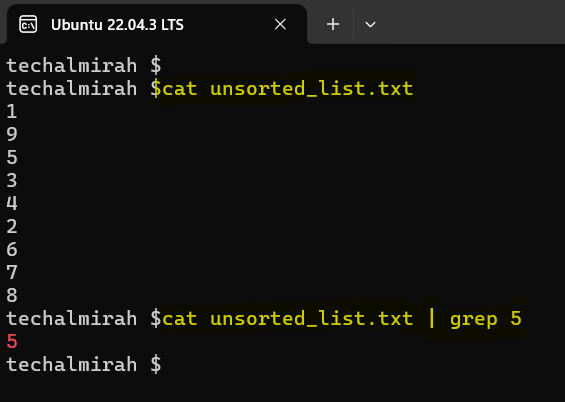
The pipe symbol (|) lets you chain commands together, sending the output of one command to the input of another.
Example:
Conclusion
File redirection opens up a world of possibilities. You can manipulate file descriptors, open and close files within scripts, and much more.